

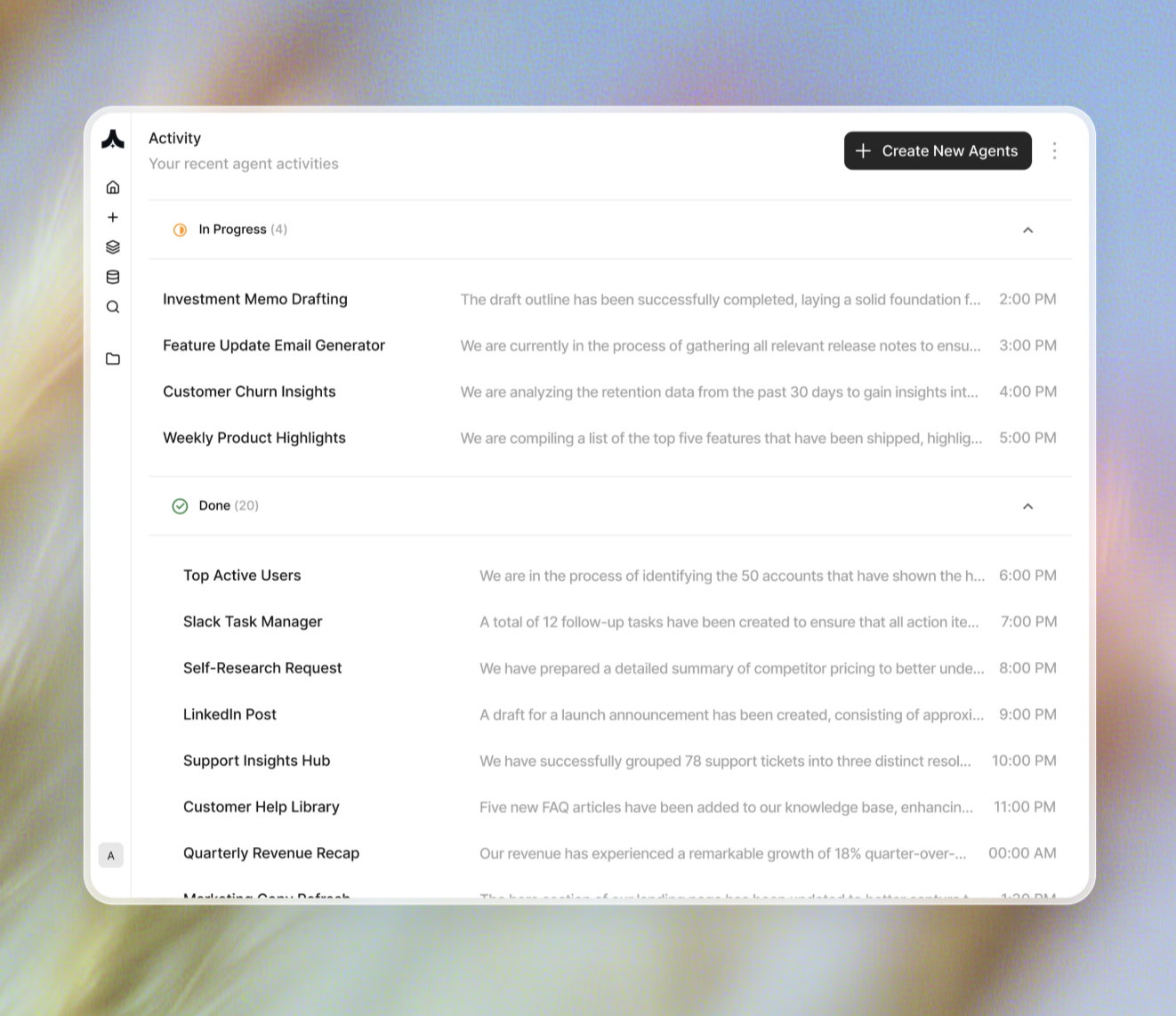
What is the Activity Monitor?
The Activity Monitor is your operations dashboard for managing autonomous AI workflows. It provides:- Real-time status tracking - See running, completed, and stopped agents at a glance
- Quick task preview - Review task details and outputs without leaving the list view
- Unblocking capability (Enterprise) - Provide guidance to agents that need human input
- Complete execution history - Access past work, decisions, and deliverables
- Operational intelligence (Enterprise) - Understand agent performance and workflow patterns
Key Capabilities
1. Unified Task View
All agent activities appear in a single, organized table: Status Indicators:- ✅ Done - Successfully completed tasks
- 🔄 Running - Agents currently executing
- ⏸️ Stopped - Agents waiting for human input or guidance
- ❌ Failed - Tasks that encountered errors
- Task name/description
- Current status or completion summary
- Time since created/completed
- Agent owner/creator
- Quick action menu
2. Quick Task Preview
Click any task row to see detailed information in the side panel: Overview Section:- Task title and status
- Completion timestamp
- Full task description
- Files created (Excel, PDFs, reports)
- Documents generated
- Emails sent
- System actions taken
- Links to outputs
- Step-by-step task progression
- Tools and integrations used
- Data accessed and processed
- Reasoning and decisions made
- Copy task
- Share task
- Export outputs
- View full conversation
- Expand to full-page view
3. Agent Unblocking
When agents encounter ambiguity or need guidance, they stop and request human input. Unblocking Workflow:- Identify stopped agent - Shows “Stopped” status in the list
- Click task row - Opens detail panel showing where agent is stuck
- Review agent’s question - Understand what guidance is needed
- Reply with instruction - Provide clarification or direction
- Watch status transition - Agent moves to “Running” → processes request → returns to “Done”
Scenario 1: Ambiguous Request
- Agent stops: “I found 3 different interpretations of ‘executive team.’ Which should I analyze: C-suite only, VPs and above, or entire senior management?”
- You reply: “Focus on C-suite only: CEO, CFO, CTO, COO”
- Agent resumes: Completes analysis with correct scope
Scenario 2: Missing Information
- Agent stops: “To complete the compliance review, I need the risk tolerance threshold. Should I use: Conservative (<5% variance), Moderate (<10%), or Aggressive (<15%)?”
- You reply: “Use Conservative threshold (<5%)”
- Agent resumes: Applies threshold and completes review
Scenario 3: Decision Point
- Agent stops: “Found 2 critical security vulnerabilities. Should I: 1) Auto-patch immediately, 2) Notify security team first, or 3) Schedule maintenance window?”
- You reply: “Notify security team first, then schedule patch for tonight’s maintenance window”
- Agent resumes: Executes approved workflow
4. Filtering & Organization (Enterprise)
Status Filters:- View only completed tasks
- Show running agents
- Filter stopped agents needing attention
- Display failed tasks requiring intervention
- Today’s activity
- This week
- This month
- Custom date range
- View tasks from specific agent workspaces
- Filter by agent type (email assistant, research agent, etc.)
- Show only your tasks vs. team tasks
- Search by task name
- Search by task content
- Search by deliverables
- Search by date range
5. Batch Operations
Select multiple tasks for bulk actions:- Archive completed tasks - Clean up the dashboard
- Export task history - Download execution logs for reporting
- Share multiple results - Send batch of completed work to team
- Compare tasks - Analyze similar workflows for optimization
Real-World Use Cases
Use Case 1: Daily Operations Review
Morning Routine:- Open Agent Activity Monitor
- Check “Done” section - Review overnight automated work
- Review deliverables - Verify reports, summaries, data processing completed correctly
- Check “Stopped” section - Unblock any agents awaiting guidance
- Monitor “Running” section - See current operations in progress
- Complete visibility in under 5 minutes
- Proactive issue resolution
- No work blocked by unavailable team members
Use Case 2: Customer Support Operations
Scenario: Support team uses agents to triage and draft responses to tickets Monitor View:- 48 completed tasks - Tickets triaged with draft responses
- 12 running tasks - Current tickets being researched and drafted
- 3 stopped tasks - Require human judgment on edge cases
- Agent 1: “Customer requesting refund outside policy window but has extenuating circumstances. Approve exception?”
- Unblock: “Approve one-time exception, note in CRM”
- Agent 2: “Ticket requires technical escalation. Assign to: DevOps team or Platform team?”
- Unblock: “Escalate to Platform team, priority: high”
- Agent 3: “Customer sentiment extremely negative. Should I: draft empathetic response, escalate to manager, or offer proactive compensation?”
- Unblock: “Escalate to manager @sarah, draft empathetic holding response”
- 48 tickets handled autonomously
- 3 edge cases resolved with human judgment
- Complete documentation of decisions
Use Case 3: Security Operations Center (SOC)
Scenario: Security team uses agents for alert triage and initial investigation Monitor View:- 120 completed tasks - Alerts triaged, false positives documented
- 8 running tasks - Active investigations in progress
- 2 stopped tasks - Require security engineer assessment
- Agent 1: “Detected unusual API access pattern from IP 203.x.x.x. Matches both: legitimate partner traffic AND suspicious reconnaissance behavior. Confidence: 65% benign, 35% malicious. Recommendation?”
- Engineer unblocks: “Add IP to watchlist, enable enhanced logging, allow traffic but monitor closely”
- Agent resumes: Implements monitoring, documents decision
- Agent 2: “Found privilege escalation attempt on production database. Automatically blocked access. Should I: 1) Maintain block and alert only, 2) Force password reset for affected users, 3) Initiate full incident response protocol?”
- Engineer unblocks: “Initiate full incident response, page on-call team”
- Agent resumes: Executes incident protocol, notifies stakeholders
- 120 alerts auto-triaged in hours (would take days manually)
- 8 investigations running in parallel
- 2 critical decisions made by security engineer with full context
- Complete audit trail maintained
Use Case 4: Financial Close Operations
Scenario: Finance team running month-end close with agent automation Monitor View (1st business day of month, 10 AM): 15 completed tasks:- Stripe transaction export: ✅ Done
- Salesforce revenue reconciliation: ✅ Done
- QuickBooks invoice matching: ✅ Done
- Variance analysis: ✅ Done (flagged 3 items >10% variance)
- Preliminary close report: ✅ Done
- Agent 1: “Found $47,000 unreconciled difference in Services revenue. Possible causes: 1) Delayed invoice recording, 2) Revenue recognition timing, 3) Data entry error. Investigation required.”
- Agent 2: “Customer ABC Corp payment received but no open invoice found. Amount: $125,000. Should I: create revenue entry, research contract, or flag for manual review?”
- Click Agent 1 task - Reviews analysis
- Unblocks: “This is the XYZ Enterprise deal that closed late Q4 but revenue recognized in January. Create accrual entry with ref: Contract #2024-089”
- Agent resumes: Creates proper accounting entry, updates reconciliation
- Click Agent 2 task - Reviews payment details
- Unblocks: “This is prepayment for 2025 subscription renewal. Record as deferred revenue, notify AR team”
- Agent resumes: Processes correctly, sends notification
- 90% of close process automated
- Edge cases flagged with context for rapid resolution
- Close completed by noon (previously took 3-5 days)
Use Case 5: Research & Analysis Operations
Scenario: Strategy team using agents for competitive intelligence and market research Monitor View:- Daily Competitor Monitoring - ✅ Done (posted to #competitive-intel)
- Industry News Summary - ✅ Done (25 relevant articles, 5 flagged as high-impact)
- 100 Company Analysis - 🔄 Running (63/100 completed)
- M&A Target Research - ⏸️ Stopped (requires prioritization input)
- Click “Daily Competitor Monitoring”
- See: Competitor X announced new pricing tier
- Deliverable: Full analysis in Notion + Slack summary
- Quick action: Share with product team
- “100 Company Analysis” - Watch real-time progress
- 63 companies analyzed in parallel
- Estimated completion: 12 minutes
- Agent stopped: “Found 47 potential acquisition targets matching criteria. Analysis would take ~6 hours for all. Priority approach: 1) Analyze all 47, 2) Filter to top 20 by revenue, 3) Focus on specific geography/vertical?”
- Analyst unblocks: “Filter to top 15 by strategic fit score (high product overlap + strong growth + geographic expansion opportunity)”
- Agent resumes: Narrows focus, completes deep analysis on priority targets
- Daily intelligence delivered automatically
- Large-scale research completing in background
- Strategic prioritization applied by human
- Team receives actionable insights, not data dumps
Benefits
1. Complete Operational Visibility
See every agent activity across your workspace. No black box—understand what’s running, what’s done, what needs attention.2. Rapid Issue Resolution
Identify and resolve blocked agents in seconds. Don’t let automated workflows sit idle waiting for simple guidance.3. Quality Assurance
Review completed work to ensure agents are executing correctly. Spot-check outputs, verify reasoning, maintain quality standards.4. Performance Analytics
Track agent execution patterns. Identify workflows that frequently require unblocking. Optimize playbooks based on real operational data.5. Audit Trail
Complete history of every agent action. Who initiated what, when completed, what was delivered. Essential for compliance and governance.6. Team Coordination (Enterprise)
See work across entire team. Understand who’s running what, where coordination is needed, what work is in progress.Best Practices
Daily Operations
Morning Review (5 minutes):- Check “Done” section - Verify overnight automation completed
- Review “Stopped” section - Unblock any waiting agents
- Monitor “Running” section - See current operations
- Check monitor when notifications arrive
- Unblock agents promptly (< 30 minutes)
- Review deliverables from completed tasks
- Archive completed tasks from previous days
- Verify no agents left in “Stopped” state overnight
- Review failed tasks, address issues
Unblocking Agents
Be Specific:- ✅ “Use Conservative risk threshold (<5%), analyze C-suite only”
- ❌ “Do what seems reasonable”
- ✅ “This is prepaid subscription for 2025. Record as deferred revenue per ASC 606”
- ❌ “Handle it appropriately”
- Agents learn from your unblocking responses
- Clear guidance improves future autonomous execution
- Builds institutional knowledge into agent behavior
Quality Assurance
Spot Check Strategy:- Review 5-10% of completed tasks randomly
- 100% review of high-risk operations
- Review first few executions of new playbooks
- Accuracy of outputs
- Appropriateness of actions taken
- Quality of reasoning
- Adherence to company policies
Common Questions
Q: How long do completed tasks stay in the monitor? A: Indefinitely. Archive manually when no longer needed, or set auto-archive policies (e.g., archive tasks older than 90 days). Q: Can I see tasks from other team members? A: Depends on workspace permissions. Workspace admins see all tasks. Team members see shared agent tasks and their own tasks. Q: What happens if I don’t unblock a stopped agent? A: Agent remains stopped until unblocked. Set notification preferences to alert you immediately when agents stop. Q: Can agents unblock themselves? A: Not by default. However, you can configure fallback behaviors: “If no response within 4 hours, default to conservative approach.” Q: How do I know when an agent needs unblocking? A: Real-time notifications via: browser notification, Slack message, email (configurable per agent/priority). This feature is still in Alpha testing. Q: What’s the difference between “Stopped” and “Failed”? A: Stopped = agent needs human guidance. Failed = agent encountered technical error (API failure, timeout, etc.). Q: Can I export the task history? A: Yes. Export to CSV for analysis, reporting, or auditing. Includes all task metadata, timestamps, and status history. This is for Enterprise only.Monitor all your AI agents from one dashboard and maintain complete operational visibility. See your Activity Monitor at komo.ai.