

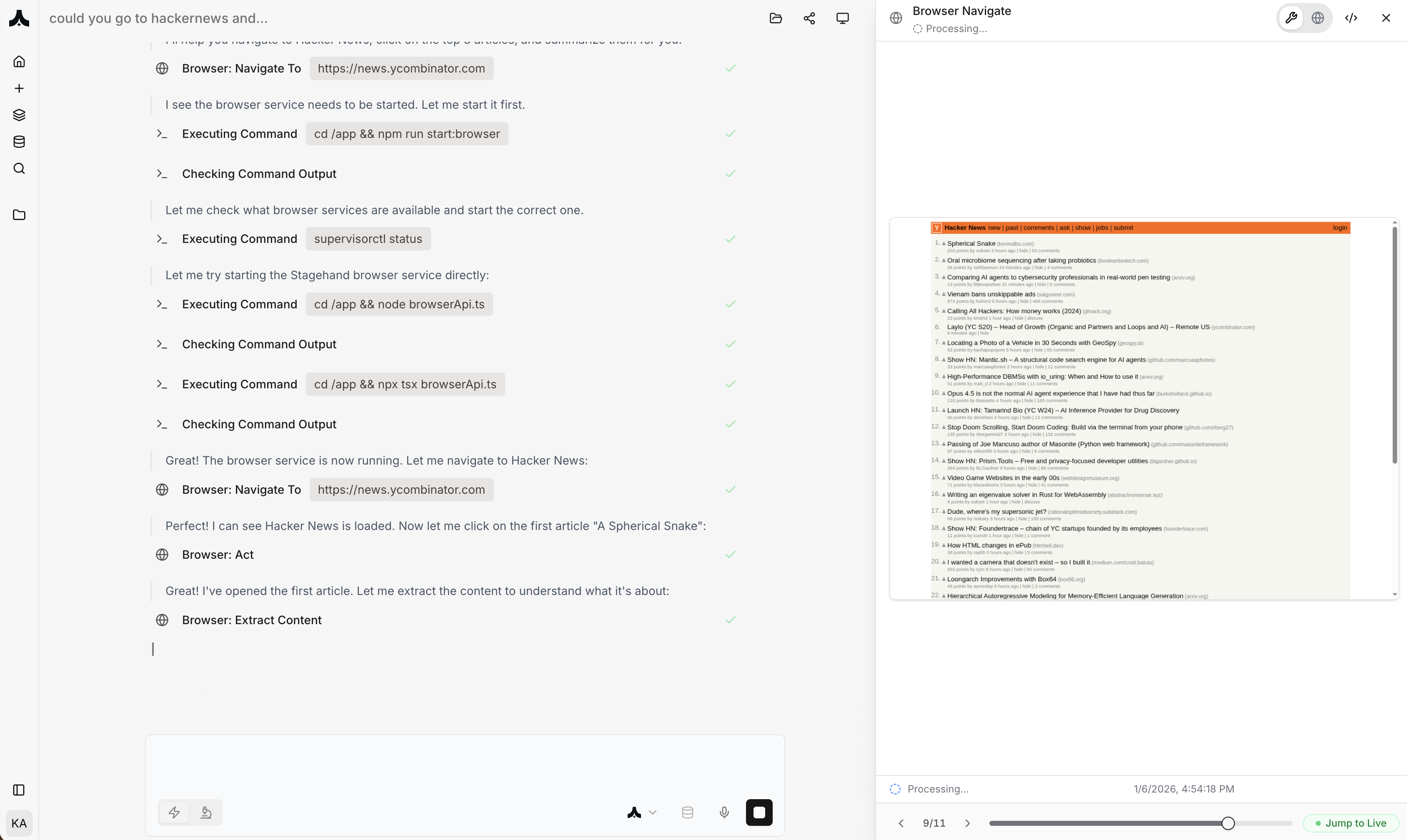
What is Cloud Browser Automation?
Cloud Browser Automation provides each agent with access to real Chrome browsers running in Komo’s cloud infrastructure. Unlike API integrations which are limited to what services expose, cloud browsers can interact with any website like a human would:- Navigate websites - Visit URLs, follow links, search, browse
- Interact with web apps - Click buttons, fill forms, upload files
- Handle authentication - Log into accounts with saved sessions
- Extract data - Scrape content, download files, capture screenshots
- Execute JavaScript - Interact with dynamic single-page applications
- Complete workflows - Multi-step processes across multiple sites
Why Cloud Browser vs. Local Browser
The Local Browser Problem
Traditional browser automation uses your local browser, which creates security and operational risks: Security Risks:- ❌ Access to your personal browsing history
- ❌ Access to saved passwords and cookies
- ❌ Potential exposure of local files
- ❌ Malicious scripts could affect your computer
- ❌ Authentication tokens exposed locally
- ❌ Requires your computer to remain online
- ❌ Can’t run when laptop sleeps or shuts down
- ❌ Performance impact on your local system
- ❌ Browser crashes affect your work
- ❌ Difficult to scale (limited to local resources)
The Cloud Browser Solution
Komo’s cloud browser architecture solves these problems through complete isolation and secure credential management: Enhanced Security:- ✅ Complete isolation from your local system
- ✅ No access to your personal browser data
- ✅ Encrypted session management
- ✅ Sandboxed execution environment
- ✅ Secure credential storage separate from browser
- ✅ Runs 24/7 without your computer online
- ✅ No performance impact on local machine
- ✅ Persistent sessions across executions
- ✅ 99.9% uptime reliability
- ✅ Scalable infrastructure
How It Works
1. Agents Request Browser Access
When an agent needs to interact with websites: Task: “Research pricing for these 50 competitor products” Agent automatically:- Requests cloud browser instance
- Receives isolated browser in <2 seconds
- Navigates to competitor websites sequentially
- Extracts pricing information
- Compiles results
- Closes browser (resources released)
2. Secure Session Management
For websites requiring authentication, Komo uses secure session management: First Time Login:- Agent encounters login page
- Prompts you: “Log in to [website] to enable automation”
- You log in once through secure modal
- Session saved encrypted in cloud
- Future agents reuse authenticated session
- Encrypted at rest and in transit
- Isolated per user (never shared)
- Time-limited and refreshable
- Revocable anytime via Settings
- Agents can access logged-in sites without re-authentication
- Sessions maintained across agent executions
- Automatic session refresh when needed
3. Manage Browser Sessions
View and control all saved sessions at Settings → Browser Sessions: Session Dashboard Shows:- All websites you’re logged into
- Last used timestamp
- Session expiration date
- Which agents have access
- Revoke - Delete session immediately
- Refresh - Re-authenticate if expired
- View agents - See which agents use this session
- Clear all - Wipe all sessions at once
4. Sequential Browser Execution
Agents use cloud browsers to complete tasks efficiently: Example: Product Research Task: “Research 100 products across 20 websites” Agent executes:- Opens cloud browser instance
- Visits each website sequentially
- Extracts data systematically
- Maintains session across sites if logged in
- Compiles complete dataset
- Cloud infrastructure ensures uninterrupted execution
- Browser state maintained throughout task
- Automatic retry on transient failures
Real-World Examples
Example 1: Automated Competitive Pricing Monitoring
Scenario: E-commerce team tracks competitor pricing daily Workflow: Scheduled: Daily at 6 AM Agent automatically:- Opens cloud browser instance
- Visits 15 competitor websites sequentially
- Extracts current prices for tracked products
- Compares against yesterday’s prices in database
- Flags significant changes (>10%)
- Generates price change report
- Posts to #pricing-intel Slack channel
- Some competitor sites require login (research subscriptions)
- Sessions saved during first run
- Subsequent runs use saved sessions
- No re-authentication needed
- Complete pricing intelligence every morning
- Zero manual work
- Historical price tracking
- Immediate notification of competitor changes
Example 2: Lead Research & Enrichment
Scenario: Sales team needs to enrich lead data with publicly available information Workflow: Task: “For these 200 leads, research company websites and extract: company size, headquarters location, funding status, product offerings” Agent automatically:- Opens cloud browser
- For each lead:
- Searches company name
- Visits company website
- Navigates to About/Team pages
- Extracts relevant information
- Saves to structured dataset
- Compiles enriched dataset
- Updates CRM (Salesforce)
- No credentials needed for public company websites
- Data extracted securely in cloud
- Results delivered to CRM via API
- 200 leads enriched systematically
- Consistent data format
- CRM automatically updated
- No manual research required
Example 3: Automated Compliance Document Collection
Scenario: Legal team needs to collect regulatory filings from 100 companies Workflow: Scheduled: Monthly on 1st day Agent automatically:- Opens cloud browser
- Navigates to SEC EDGAR system
- For each company:
- Searches company name
- Finds latest 10-K filing
- Downloads document
- Renames file systematically
- Uploads all files to Notion database
- Updates compliance tracking spreadsheet
- Runs overnight (no computer needs to be on)
- Reliable execution (cloud infrastructure)
- Systematic organization
- Auditable (complete log of downloads)
- 100 filings collected automatically
- Organized systematically
- Compliance team reviews, not collects
Example 4: Multi-Site Order Monitoring
Scenario: Operations team monitors order status across 5 supplier portals Workflow: Scheduled: Every 4 hours Agent automatically:- Opens cloud browser
- Logs into first supplier portal (saved session)
- Checks order status for all pending orders
- Extracts tracking numbers
- Repeats for remaining 4 supplier portals
- Compares against expected delivery dates
- Flags delays (>2 days late)
- Updates internal operations dashboard
- Sends Slack alert if critical delays
- 5 different supplier login sessions saved
- Each portal has different auth method (handled automatically)
- Sessions refreshed as needed
- Operations team never logs in manually
- Real-time order visibility
- Proactive delay detection
- No manual portal checking
- Unified dashboard across suppliers
Example 5: Job Market Intelligence Gathering
Scenario: Recruiting team monitors job boards for candidate pipeline insights Workflow: Scheduled: Daily at 8 AM Agent automatically:- Opens cloud browser
- Searches job boards (Indeed, LinkedIn, Glassdoor)
- For each board:
- Filters: “machine learning engineer” + “San Francisco” + “posted last 24 hours”
- Extracts: company, title, salary range, requirements
- Identifies competitors’ job postings
- Tracks hiring trends over time in
/workspace/hiring_trends.db - Generates weekly hiring intelligence report
- Job sites often block automated scrapers
- Real browser = appears as legitimate user
- Sequential execution = respectful of site resources
- Persistent sessions = no repeated logins
- Comprehensive talent market intelligence
- Competitor hiring insights
- Proactive candidate sourcing
- Data-driven recruiting strategy
Best Practices
Browser Automation Design
Be Specific: ✅ Good: “Navigate to example.com/products, filter by ‘Electronics’, sort by price descending, extract top 20 product names and prices” ❌ Vague: “Get products from that website” Handle Variations:- Account for different page layouts
- Handle loading states (wait for elements)
- Plan for error states (page not found, timeout)
- Don’t overwhelm websites with requests
- Add delays between actions if needed
- Be respectful of website resources
Common Questions
Q: Does Komo access my local browser? A: No. Komo uses exclusively cloud-based browsers. Zero access to your local browser, history, or data. Q: How do I log into websites for automation? A: When agent needs authentication, you log in once through secure modal. Session saved encrypted for future use. Q: Where are my login sessions stored? A: Encrypted in Komo’s secure cloud infrastructure. Accessible only to your agents. Revocable anytime. Q: Can agents see my passwords? A: No. You log in directly through browser. Only session cookies stored (encrypted). No password exposure. Q: What happens if I change my password on a website? A: Saved session becomes invalid. Agent notifies you. Log in again to save new session. Q: Can I use cloud browser for banking/financial sites? A: Technically possible, but not recommended for highly sensitive financial operations. Use for research, public data only. Q: Can I run multiple browser instances simultaneously? A: Currently, each agent uses one browser instance at a time. Multiple agents can run in parallel, each with their own browser. Q: Do websites detect cloud browser as automated? A: Cloud browsers appear as real Chrome browsers. Most websites cannot distinguish. However, some security-sensitive sites may prompt additional verification. Q: Can I watch agents browse in real-time? A: Yes. Agent thread shows screenshots and live preview as agent navigates. You could take over the browser whenever you want. Q: How long do browser sessions last? A: Sessions persist until: you revoke them, they expire (site-dependent, typically 30-90 days), or you change password on site. Q: Can multiple agents share the same browser session? A: Yes. All your agents can use sessions you’ve saved. Sessions reused efficiently across agents.Let AI agents navigate websites and complete web-based tasks securely in the cloud. Get started at komo.ai.